🧑💻 Installing the CLI !
You can download the CLI from this link → GreenCloud CLI Tool
Linux and OSX
On Linux and OSX machines you will need to convert the file into a executable. Use the CHMOD command to achieve this :-
chmod +x gccli-0.5.2-darwin-amd64
This tells the operation system that the file is an executable. On MAC machines, if you get a message like this,
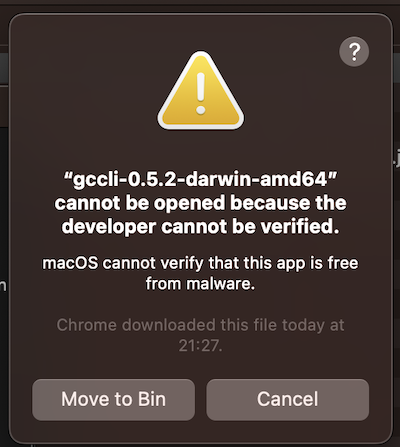
then open the System Settings window (top left Apple icon) and select Security Settings. (Specific namings may vary due to OS updates / versions). You should see a screen that is similar to this :-
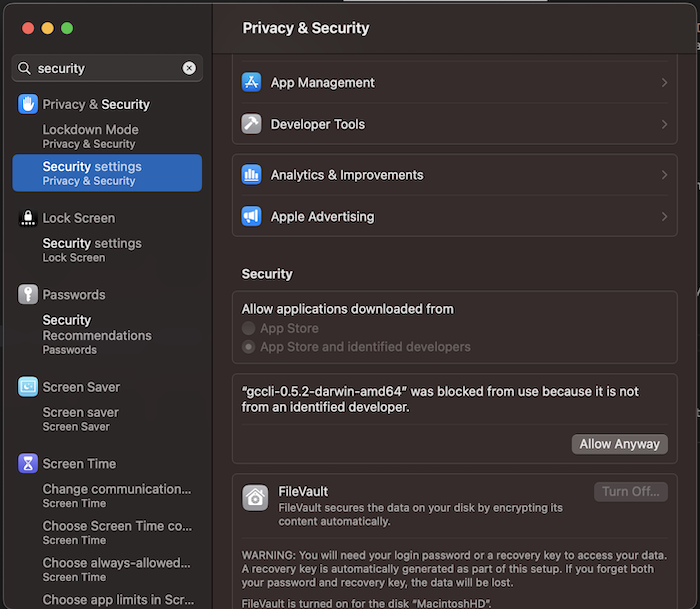
Click the button "Allow Anyway". The computer will ask you to authenticate with your user name or password. You should then be able to access the CLI tool on your machine!
Windows
On Windows machines you will need to place the gccli.exe file in the windows/system32 folder.
Running the CLI tool
Running the CLI tool will look as below:-
$ gccli
NAME:
  gccli - the future of clean, ethical cloud computing....

USAGE:
  gccli [global options] command [command options] [arguments...]

VERSION:
  23.04.08

COMMANDS:
  login         you must login to start using GreenCloud
  logout        logout to stop using GreenCloud CLI
  node          manages node settings
  info          gets info from user
  status        gets all running function
  function, fx  manages functions
  update        checks if a newer version is available

GLOBAL OPTIONS:
  --help, -h     show help
  --version, -v  print the version
The rest of the pages in this section will be spent detailing the various niche calls in the CLI and how they work and inter-operate.